

AI-generated images often fail to look the way we expect.
Beginners commonly face issues such as:
- Motion that feels frozen when it should look dynamic
- Characters or objects that are slightly smeared in an ugly way
- Night scenes that look too clean, with no light trails or sense of movement
- Action scenes that feel static and lifeless
Most of these problems are caused not by the AI model itself, but by a missing understanding of a fundamental photography concept:
shutter speed.
Understanding this principle allows you to create more dynamic, cinematic, and story-rich prompts—regardless of the model you use.
1. Introduction to Shutter Speed

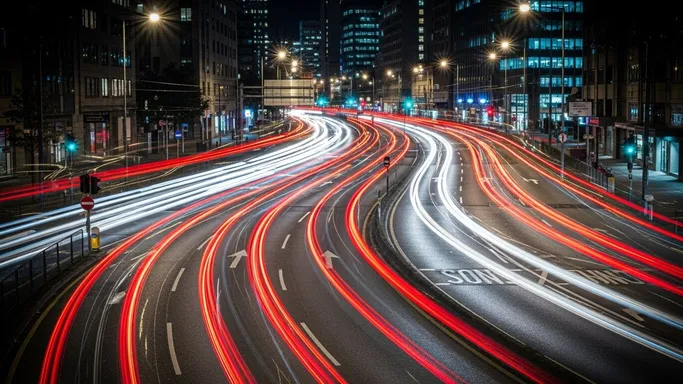
In real cameras, shutter speed is how long the sensor is exposed to light. It is usually written as:
- Fast shutter speeds: 1/1000s, 1/500s, 1/250s
- Medium shutter speeds: 1/125s, 1/60s
- Slow shutter speeds: 1/15s, 1/8s, 1 second, 5 seconds, 30 seconds
The key idea:
-
Fast shutter speed
- Sensor is exposed for a short time
- Freezes motion
- Great for sports, action, sharp moving subjects
-
Slow shutter speed
- Sensor is exposed for a longer time
- Creates motion blur when things move during the exposure
- Great for light trails, silky water, dynamic movement, ghost-like effects
For AI image generation, the model is not actually controlling a physical shutter. However, it understands phrases like:
- “long exposure”, “slow shutter speed”, “light trails”, “motion blur”
- “fast shutter speed”, “frozen motion”, “sharp moving subject”
By using shutter speed concepts in your prompts, you are telling the AI how movement should be rendered:
- Completely frozen and crisp
- Softly blurred to show motion
- Dramatically stretched into long trails
This is the difference between a still frame that feels dead and a still frame that feels alive.
2. Applying Shutter Speed in Prompt Writing
Now let’s turn shutter speed into practical prompt patterns that you can reuse.
2-1. When to Use It
You should reference shutter speed (or its effects) whenever:
- Something in your scene is moving: people, cars, water, fabric, lights
- You want to control whether motion is frozen or blurred
- You want to add dynamic energy or dreamy fluid motion to an otherwise static scene
Typical use cases:
-
Freezing Fast Action
- Sports, dance, running, jumping, splashing water
- Keywords: “fast shutter speed”, “frozen motion”, “razor-sharp moving subject”
- Result: every detail is crisp, like a high-speed sports shot
-
Showing Motion with Blur
- Running people, moving cars, spinning objects, fabric in the wind
- Keywords: “motion blur”, “slow shutter speed”, “long exposure effect”
- Result: clear sense of direction and speed
-
Light Trails & Night City Effects
- Car headlights and taillights, neon signs, fairground rides
- Keywords: “long exposure”, “light trails”, “streaks of light”, “slow shutter”
- Result: stylized cityscapes and night scenes with energetic lines of light
-
Silky Water & Atmospheric Landscapes
- Waterfalls, rivers, ocean waves, fountains
- Keywords: “long exposure water”, “silky smooth water”, “slow shutter speed”
- Result: soft, misty, dreamlike water texture
-
Ghostly or Double-Exposure-Style Effects
- People appearing semi-transparent or repeated across the frame
- Keywords: “long exposure with ghostlike figure”, “motion blur figure”, “trails of movement”
If your prompt includes any moving subject, decide on purpose whether that motion should be sharp or blurred—and then say it.
2-2. Common Problems It Solves
Here is how shutter speed concepts map to frequent AI frustrations.
-
“My action scene feels static and boring.”
- Cause: everything is frozen with no visual hint of motion.
- Fix: add motion-related phrases:
- “dynamic motion blur on background”, “slight blur on moving limbs”
- “long exposure feel, streaks of motion in the background”
-
“The moving subject looks messy, not intentionally blurred.”
- Cause: AI created accidental smears, not purposeful motion blur.
- Fix: describe what is sharp and what is blurred:
- “sharp focus on the runner’s face, background with motion blur”
- “car sharp, road and lights streaked with motion blur, long exposure style”
-
“Night city scenes look too clean—no light trails or energy.”
- Cause: no mention of slow shutter, long exposure, or moving lights.
- Fix: explicitly ask for long exposure aesthetics:
- “long exposure night photography, light trails from cars, glowing streaks of color”
-
“Water doesn’t look like those silky waterfall photos I see.”
- Cause: AI uses a standard sharp water texture.
- Fix: reference slow shutter / long exposure:
- “long exposure waterfall, silky smooth flowing water, soft misty effect”
-
“I want everything sharp, but some parts look slightly blurred.”
- Cause: prompt suggests movement or softness without clarity.
- Fix: demand frozen action:
- “fast shutter speed, frozen motion, every detail sharp and crisp”
2-3. Prompt Examples
You can copy and adapt the following prompts directly.
“High-energy sports photo of a runner sprinting on a track, fast shutter speed, frozen motion, sharp details on muscles and droplets of sweat, stadium background slightly blurred by perspective, high-resolution photograph.”
“Night city street with cars passing by, long exposure photography, bright light trails from car headlights and taillights, neon signs glowing, wet pavement reflecting colors, cinematic mood.”
“Waterfall in a forest at sunrise, slow shutter speed, silky smooth water, soft mist, long exposure effect, rocks and trees in sharp focus, atmospheric landscape photograph.”
“Dancer spinning on stage, sharp focus on the dancer’s face and upper body, motion blur on arms and dress, stage lights creating streaks of color, dynamic performance shot.”
“Cyclist speeding through an urban street, sharp cyclist, strong horizontal motion blur in the background, sense of speed and direction, realistic action photography.”
Note that we rarely need to write the exact shutter speed number (like 1/1000s). Instead, we describe the effect: fast shutter, frozen motion, long exposure, motion blur, light trails.
2-4. Detailed Use Cases
Concrete scenarios with suggested images and what shutter-speed-related choices are doing.
Use Case 1: Frozen Action vs Dynamic Motion
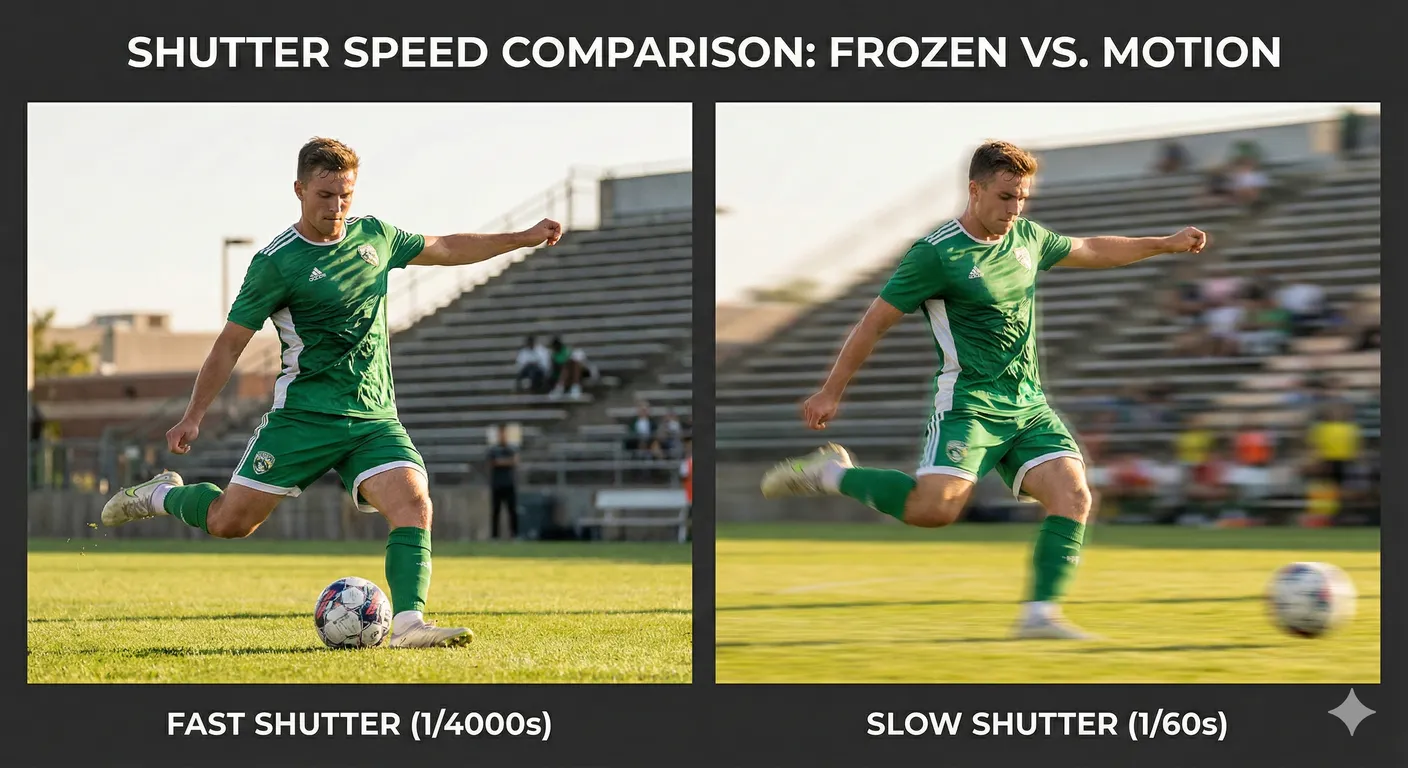
What changed and why:
The frozen image is perfect for clarity and analysis. The motion-blurred image feels more energetic and cinematic. By controlling shutter-speed language in prompts, you choose whether the viewer feels “paused time” or “time in motion.”
Use Case 2: Night City – Static vs Long Exposure
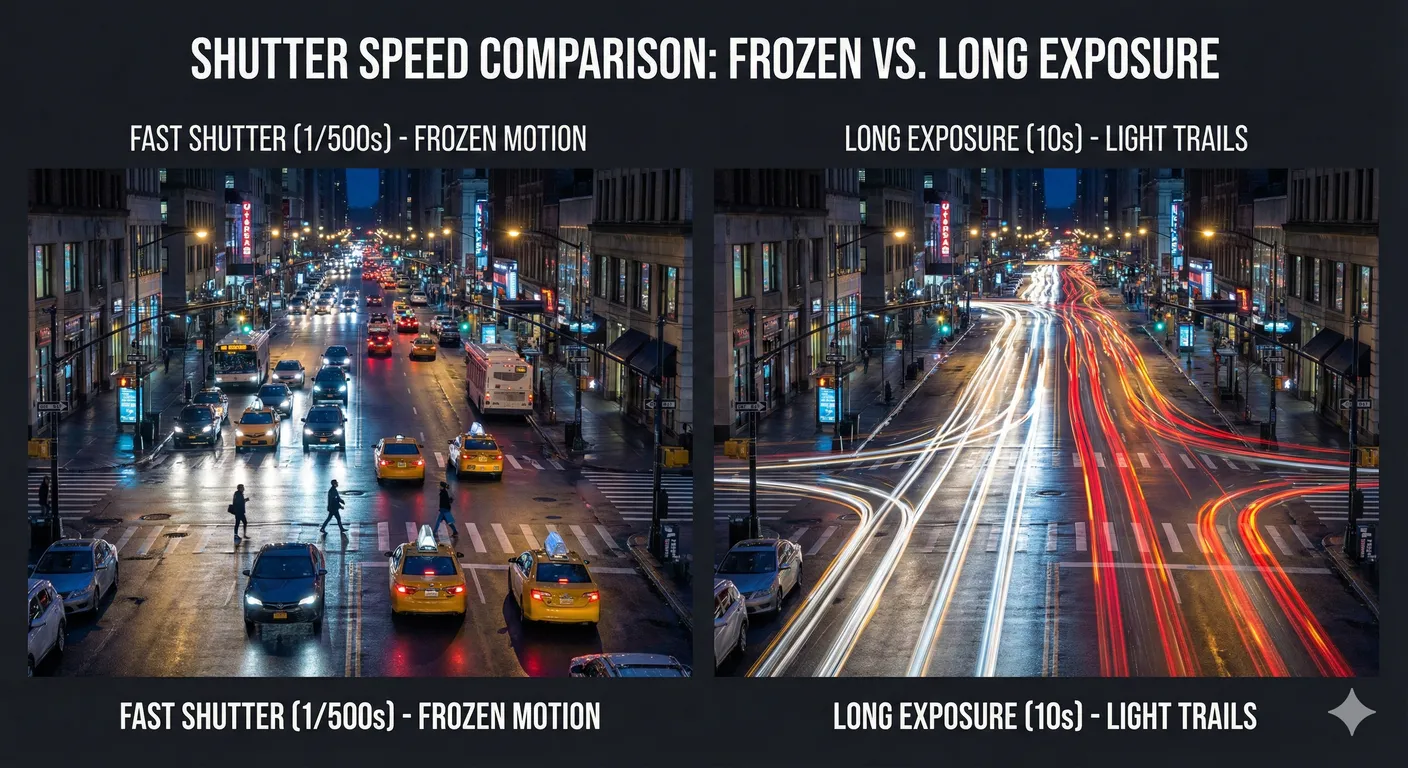
What changed and why:
The long-exposure style transforms a normal street into a dynamic light painting. Words like “long exposure”, “light trails”, and “streaks of light” are essential for this feel.
Use Case 3: Water Texture – Sharp vs Silky
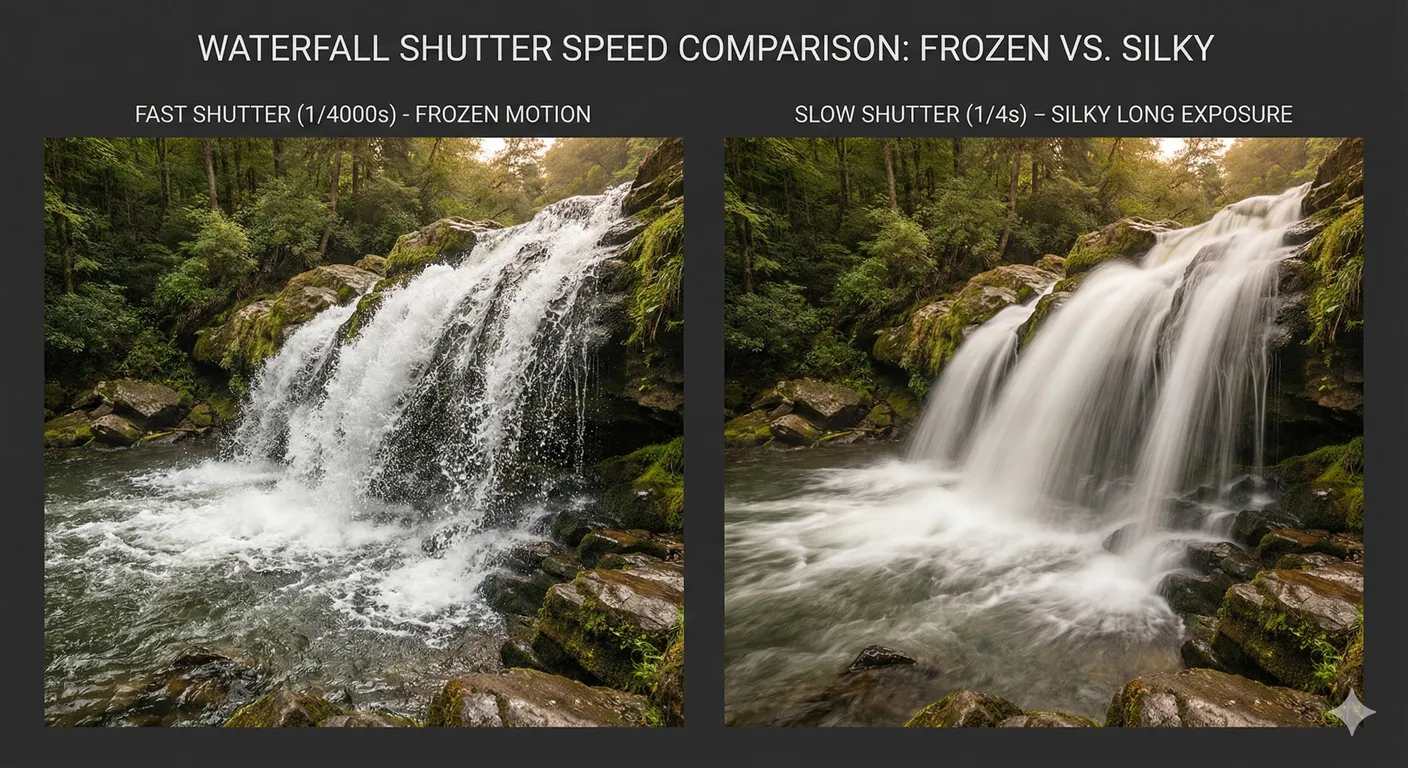
What changed and why:
Fast shutter emphasizes texture and detail. Slow shutter creates a dreamlike, painterly effect. Both are valid aesthetics, and you can pick one by specifying shutter-speed-related keywords in your prompt.
Use Case 4: Subject Sharp, Background Blur
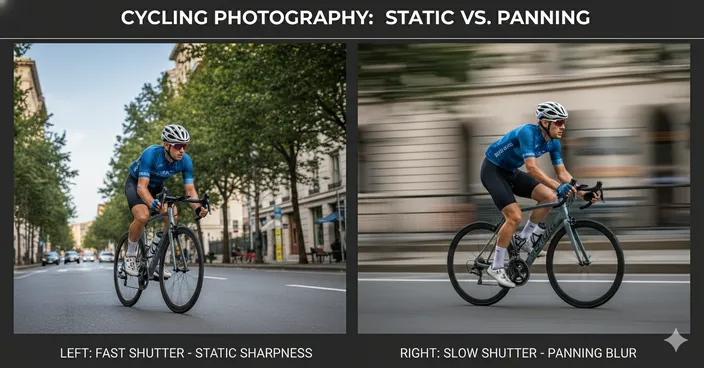
What changed and why:
The second image clearly conveys speed and direction. Prompts like “sharp subject, motion-blurred background, sense of speed” tell the AI how to simulate a panning shot with a slower shutter.
3. What You Can Do Now (Practical Benefits)
By understanding shutter speed, you can:
- Decide how movement feels: frozen, soft, or dramatically blurred.
- Turn static AI images into dynamic frames with a sense of speed and flow.
- Add cinematic long-exposure effects like light trails, ghostly figures, and silky water.
- Avoid random, ugly blur by clearly stating what is sharp and what is blurred.
- Design scenes that look like they were shot by an experienced photographer, not just a generic camera.
From now on, when you describe action, think:
“Do I want this moment frozen or streaked with motion?”
Then add the appropriate shutter-speed language to your prompt.
4. Differences between Shutter Speed and Motion Blur
Beginners often treat shutter speed and motion blur as the same thing, but they are not identical.
An easy way to separate them:
-
Shutter Speed
- A camera setting (in real photography).
- Controls how long the sensor is exposed to light.
- Described by numbers: 1/1000s, 1/250s, 1/30s, 1s, 10s.
- In prompts, usually implied with phrases like “fast shutter speed”, “slow shutter speed”, “long exposure”.
-
Motion Blur
- A visual effect that happens when objects move during the exposure (or when the camera itself moves).
- Can appear on the subject, background, lights, or the entire frame.
- In prompts, described more visually: “motion blur on the background”, “soft blur on moving arms”, “light trails”, “ghostlike movement”.
In simple terms:
- Shutter speed is the cause.
- Motion blur is the result.
In AI prompts, you do not have to specify exact shutter speeds. Instead, you can:
-
Use cause-style language when you want to evoke a photography feel:
- “long exposure night photography”, “slow shutter waterfall shot”.
-
Use effect-style language when you care about what the viewer sees:
- “smooth motion blur on the dancer’s dress”, “streaks of light from passing cars”.
Often, you will combine both:
“Long exposure night city scene, slow shutter effect, light trails from cars and motion blur in the background, subject standing still and sharp.”
Here, “long exposure / slow shutter” communicates the photographic logic, and “light trails / motion blur” describes the visible result.
5. Summary & Practice Exercises
Summary
- Shutter speed controls how long the camera (or simulated camera) collects light, affecting whether motion is frozen or blurred.
- Fast shutter speeds (like 1/1000s) freeze action: great for sports, sharp splashes, and crisp moving subjects.
- Slow shutter speeds (like 1/15s, 1 second, 5 seconds) create motion blur and long-exposure effects: light trails, silky water, ghostlike figures.
- In AI prompts, you usually describe the effect rather than the exact number: “fast shutter, frozen motion” or “long exposure, light trails, motion blur.”
- Shutter speed (cause) and motion blur (effect) are related but not identical; you can describe both the photographic idea and the visual outcome.
- Being deliberate about shutter-speed language makes action, water, and night scenes feel far more dynamic, cinematic, and intentional.
Practice Exercise: Basic Comparison
Use these exercises to build intuition for shutter-speed-driven effects in AI images.
-
Frozen vs Blurred Action
Generate two versions of the same scene:- “Runner sprinting on a track, fast shutter speed, frozen motion, every detail sharp, bright daylight, realistic sports photo.”
- “Runner sprinting on a track, dynamic motion blur on legs and background, sense of speed, long exposure style action shot.”
Compare which one feels more energetic, and which one feels more analytical.
-
Night City Light Trails
Generate two night city scenes:- “Night city street with cars, all cars frozen, lights sharp, no motion blur, clean detailed photo.”
- “Night city street with cars, long exposure, bright light trails from car headlights and taillights, soft motion blur, wet pavement reflecting streaks of light.”
Evaluate how much extra energy and atmosphere the second version brings.
-
Water Texture Study
Generate two waterfall or ocean scenes:- “Waterfall in a forest, fast shutter effect, every droplet sharp and detailed, crisp high-speed photography.”
- “Waterfall in a forest, slow shutter speed effect, silky smooth water, soft mist, long exposure landscape.”
Decide which style better matches the mood you want in your projects.
-
Sharp Subject, Moving World
Generate two cycling or running scenes:- “Cyclist riding through a city, everything in sharp focus, buildings and street fully detailed.”
- “Cyclist riding through a city, sharp focus on the cyclist, strong motion blur on background and road, sense of high speed, cinematic action shot.”
Observe how the second approach uses motion blur to guide the viewer’s eye and emphasize speed.
By repeating exercises like these and carefully wording your prompts, you will develop an intuitive sense of how shutter-speed language shapes AI-generated imagery—and your scenes will start to look like intentional photographs, not accidental snapshots.